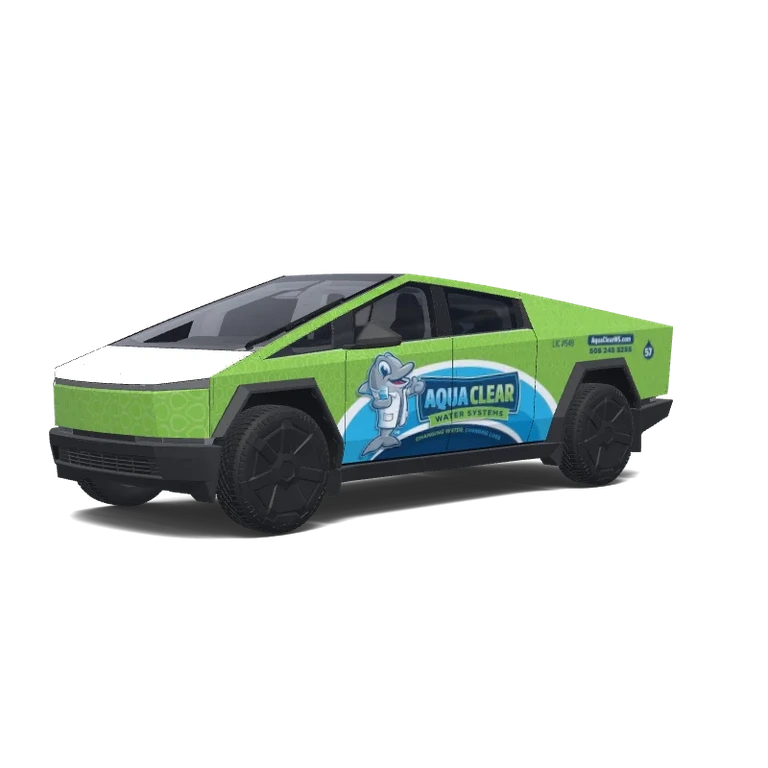
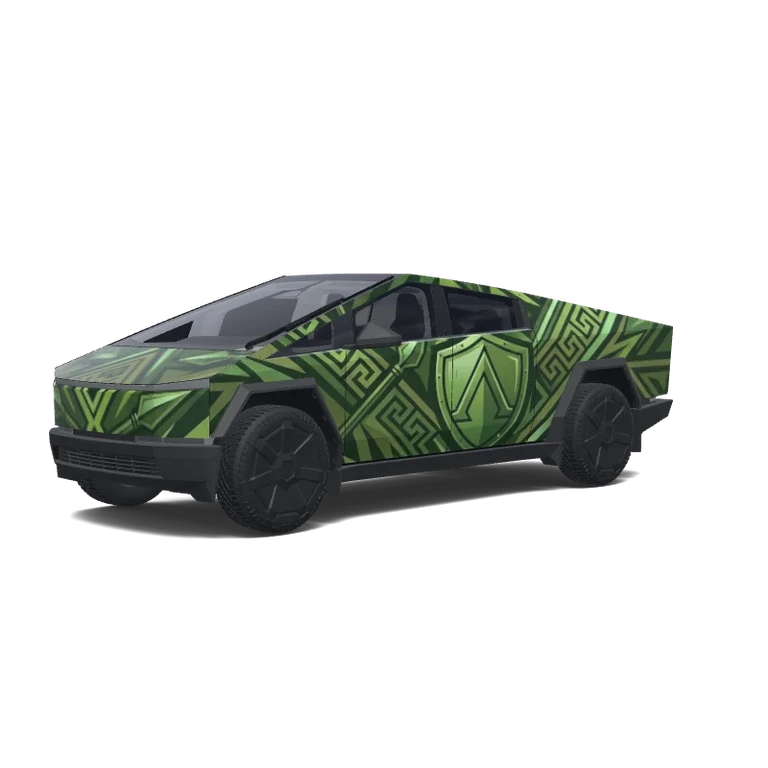
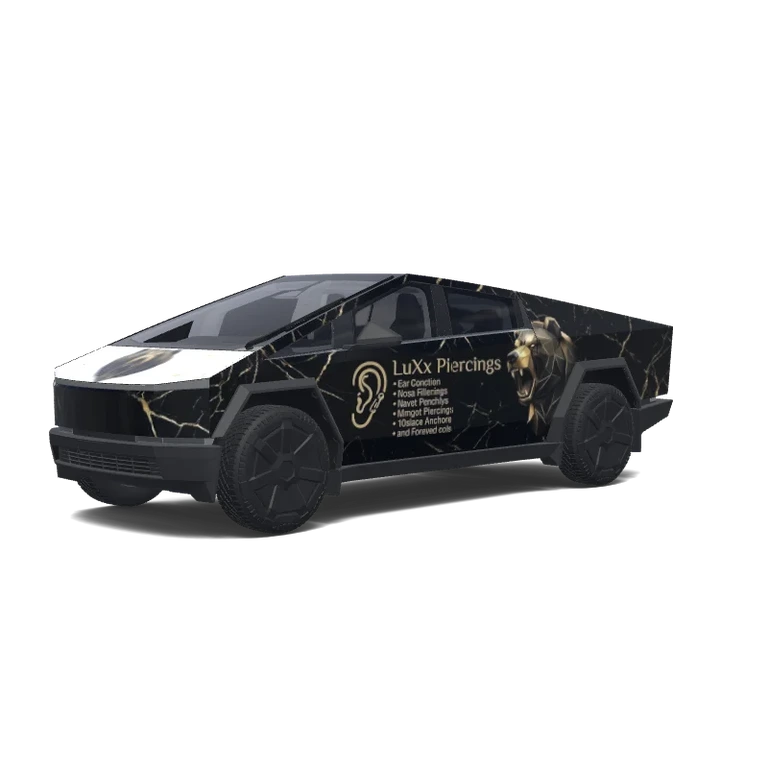
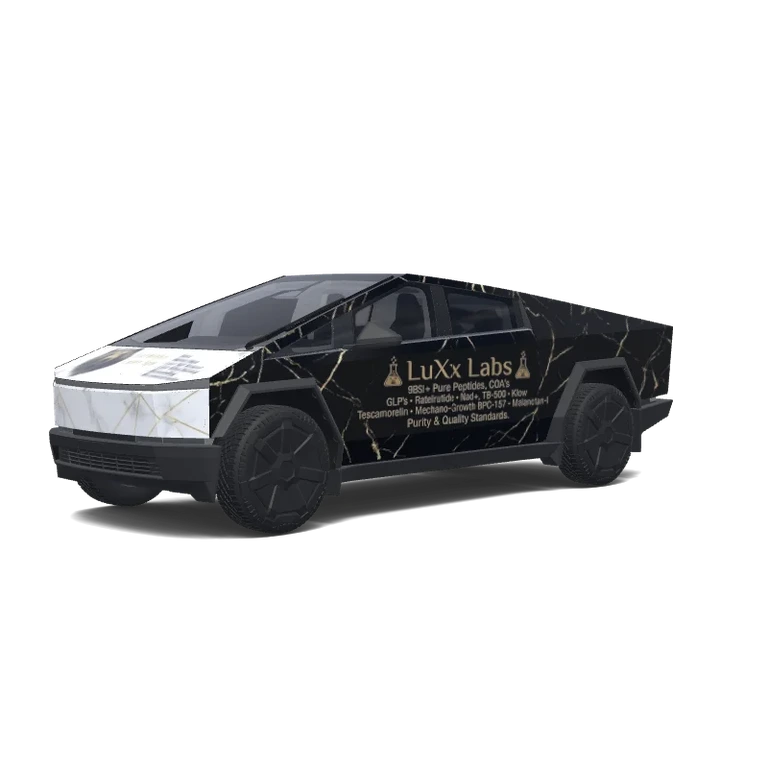
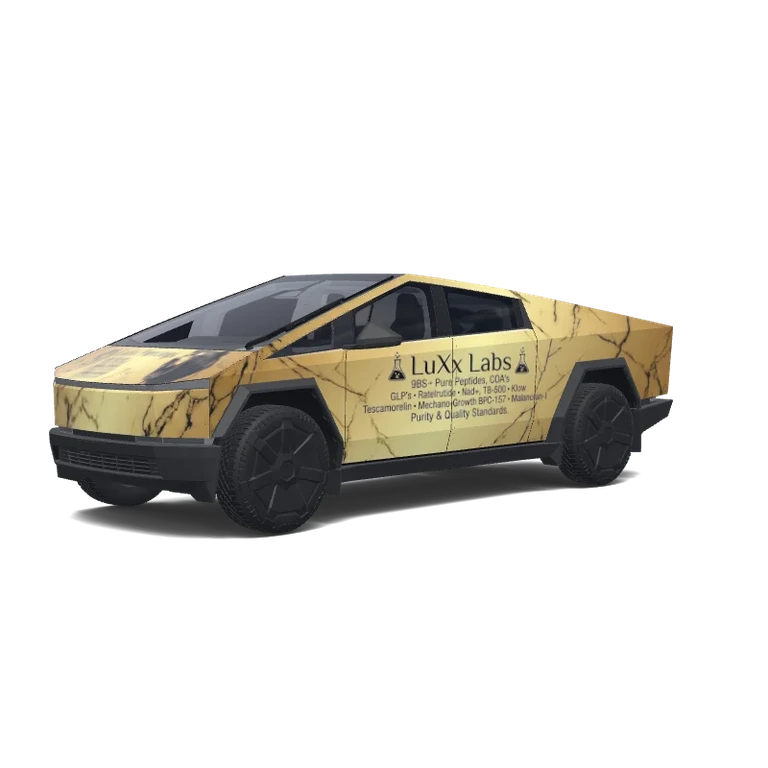
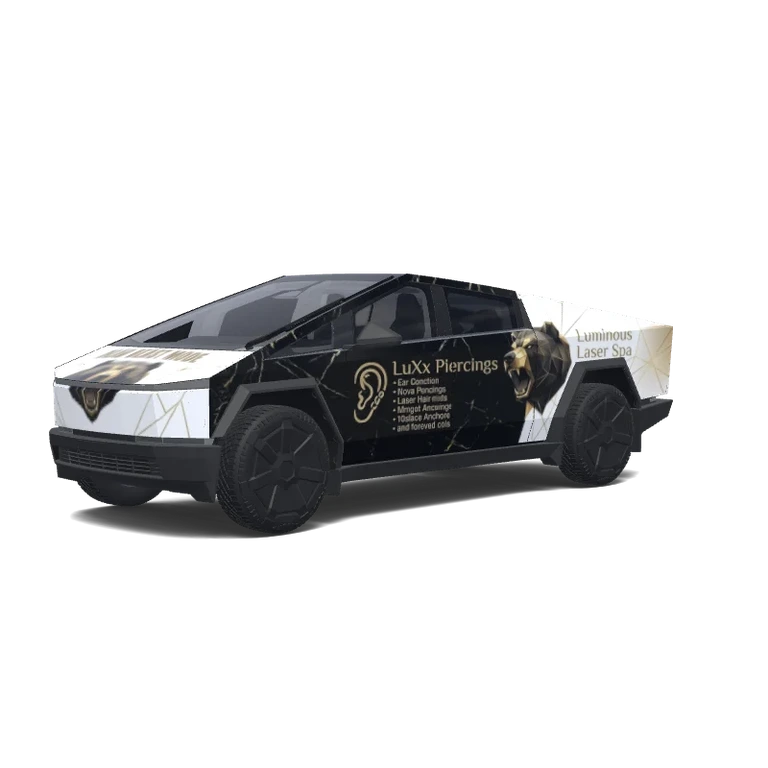
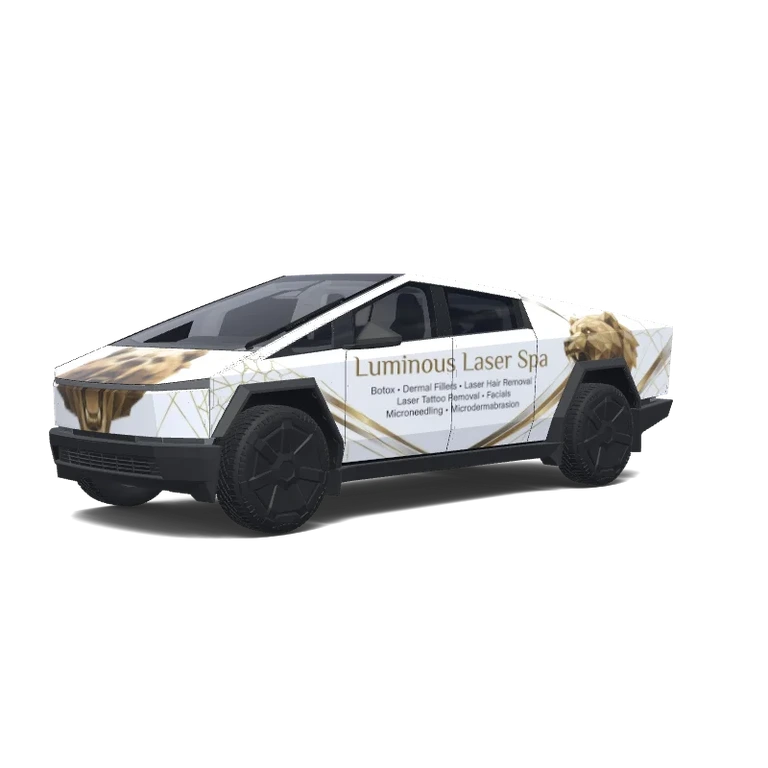
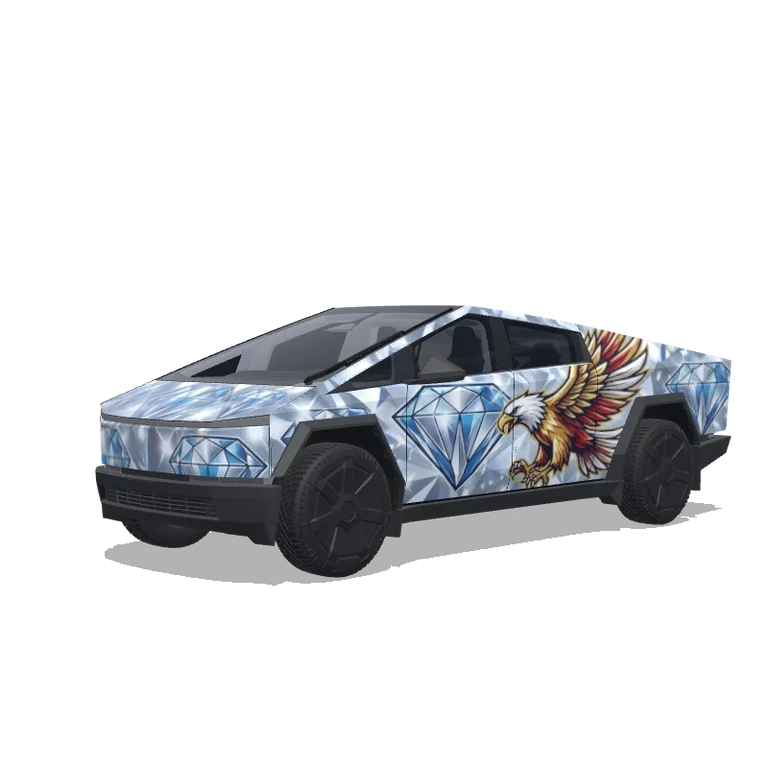
 AI
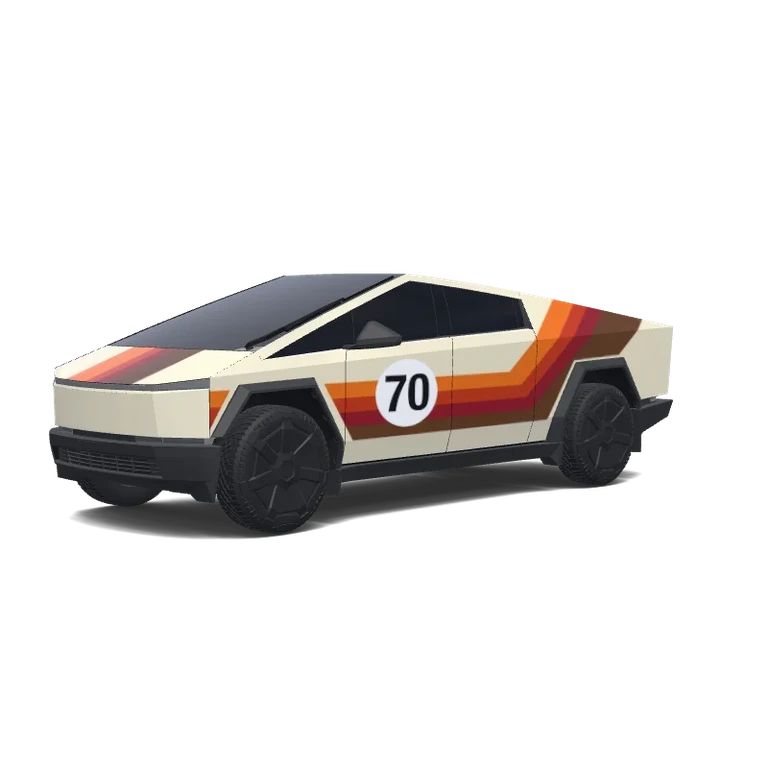
Cybertruck · Custom design · 8vbWtIbu
AI remix prompt
Create a digital wrap for Tesla Cybertruck using its exact 1024 × 768 UV template. Theme: Cybertruck · Custom design · 8vbWtIbu. Visual direction: bold motorsport graphics, stripes and number accents. Reference palette: yellow, white, orange, brown, red. Place key motifs on doors, hood and side panels; adjust their scale to this vehicle’s proportions. Keep connected graphics aligned across UV panel boundaries. Preserve transparent areas outside the supplied panel mask; do not add wheels, windows, scenery or a rendered car. Output a flat PNG texture, not a perspective preview.
Original brief: Retro 1970s racing Cybertruck, cream body with orange, red and brown racing stripes along the sides, number 70 in a white roundel..
Original creator prompt
Retro 1970s racing Cybertruck, cream body with orange, red and brown racing stripes along the sides, number 70 in a white roundel..
Remix options and prompt context
Prepared from this artwork’s image, design context and vehicle version. This is a remix brief, not a recovered original generation prompt.
Like
Download0
Updated
Public gallery design · Free
Original design title
Cybertruck · Custom design · 8vbWtIbu
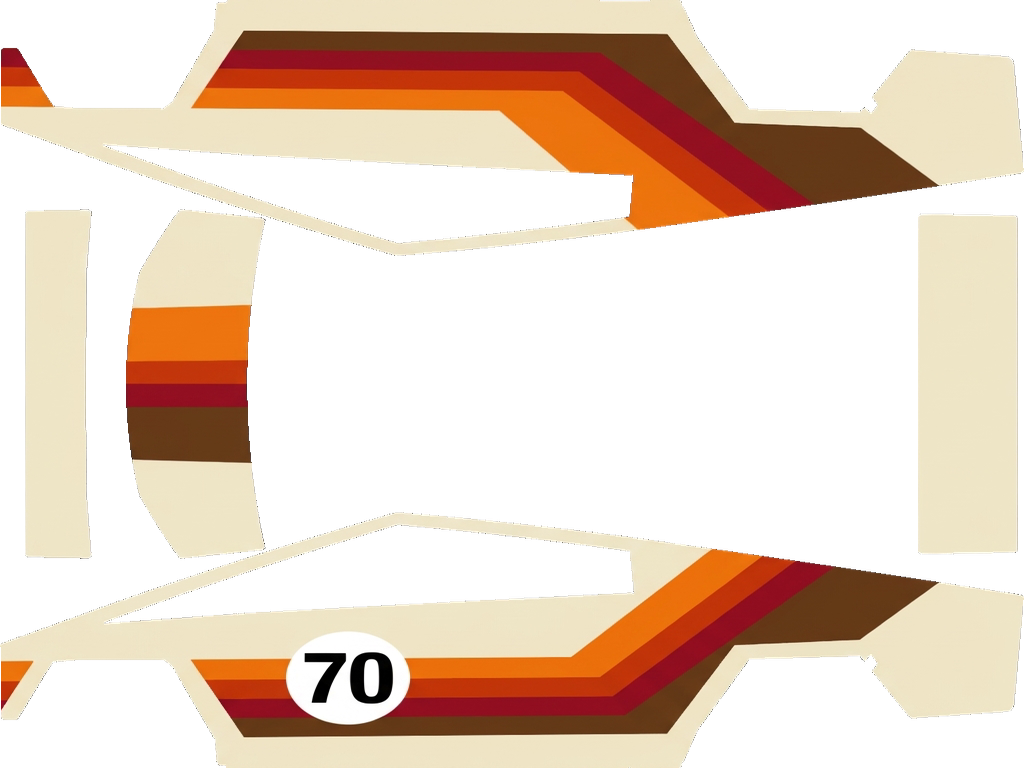
Downloadable wrap PNG
The vehicle image shows the appearance on the car. This flat PNG is the file to download, inspect and import into Paint Shop or the editor.
PNG1024 × 768 px381.8 KBCybertruck
File checks passed · view details
- File formatActual PNG file
- PNGPass
- Image dimensions512–1024 px per side
- 1024 × 768 pxPass
- File sizeAt most 1 MB
- 381.8 KBPass
- Download filenameAt most 30 characters · ASCII letters, digits, spaces, _ or -
- 2869-ct-9f3bb25a8bf5.pngPass
- Vehicle template dimensionsMust match 1024 × 768 px
- 1024 × 768 pxPass
These checks cover file format, size and template dimensions. Panel alignment and support on your vehicle still need checking. This PNG is for screen visualization, not physical wrap production.
About this design
Retro 1970s racing Cybertruck, cream body with orange, red and brown racing stripes along the sides, number 70 in a white roundel..
Open a gallery design in the editor to adjust colors, add graphics, or create a variant. You can also generate Tesla wrap ideas with AI and preview them in 3D.
Upload guide
Download a PNG made for your exact Cybertruck template. Upload it in the Tesla app under Creations → Wrap → Upload, or copy it to a USB folder named Wraps. Select it in Toybox → Paint Shop → Wraps to change the on-screen vehicle visualization.
- Download the PNGChoose the PNG for your exact model, year and variant. Each side must be 512–1024 pixels and the file no larger than 1 MB.
- Upload in the Tesla appIn Tesla app 4.59.0 or later, open Creations → Wrap → Upload and select the PNG.
- Or use a USB driveCopy the PNG to a Wraps folder at the root of a FAT32 or exFAT USB drive, then connect it to your car.
- Apply on your vehicleOpen Toybox → Paint Shop → Wraps. Select the design and check the panel positions and seams.
Frequently asked questions
How do I install a wrap on my Cybertruck?
Download a PNG made for your exact Cybertruck template. Upload it in the Tesla app under Creations → Wrap → Upload, or copy it to a USB folder named Wraps. Select it in Toybox → Paint Shop → Wraps to change the on-screen vehicle visualization.
Are Cybertruck wraps free to download?
Many Cybertruck designs are free to download. Premium designs are marked and require credits to download the clean PNG.
What file format do Cybertruck wraps use?
Use a PNG at the native size of the official Cybertruck template, within Tesla’s supported 512–1024 pixel dimensions and no larger than 1 MB. Choose the exact vehicle variant so the artwork aligns with the panels.
Can I create my own Cybertruck wrap?
Yes. Select the Cybertruck template in the editor, add images, text or colors, and check the result in 3D before exporting a PNG. AI generation is also available and uses credits.